Waiting-room display
Run a paired reception display without exposing the clinic record
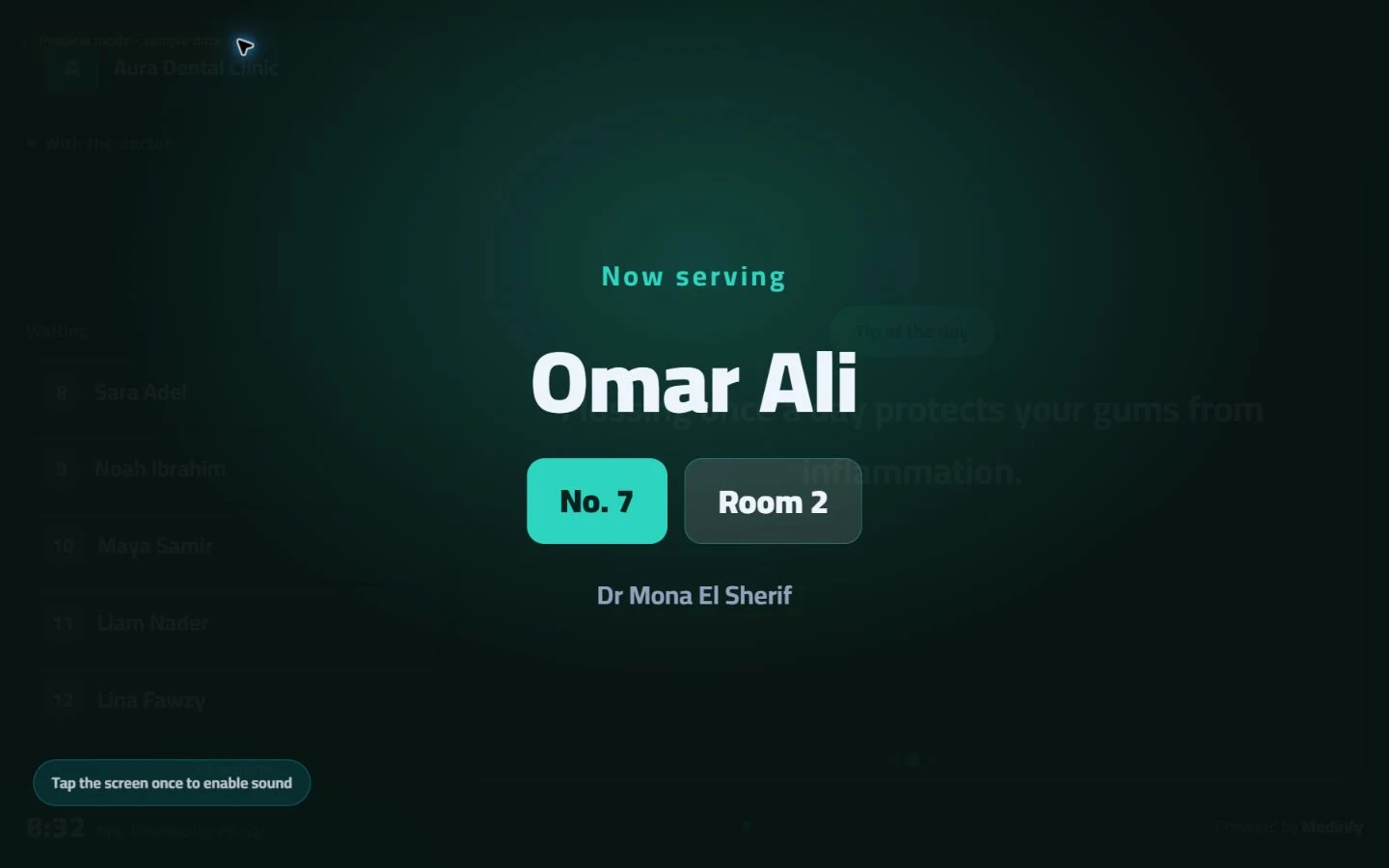
The Modirify waiting-room display turns a reception screen into a managed patient-flow and clinic-content surface. The clinic pairs and names screens from one setup, chooses whether the queue uses patient names or numbers, sets language and theme, calibrates the screen, and selects clinic-owned or library content without turning the public display into a patient record.
Direct answer
What can the waiting-room display show?
It can show the patient-flow label selected by clinic policy, clinic tips, eligible library content, clinic-owned audio or video, and QR paths such as the configured Google review or public booking entry point. Pairing connects the screen to its clinic setup, while the display remains isolated from clinical, financial and administrative record screens.
01Waiting-room display
Display content and patient labels remain under clinic policy and setup.
Core capabilities
Verified display controls
Display content and patient labels remain under clinic policy and setup.
Show patient names or queue numbers according to clinic policy.
Choose the screen language and a visual theme that fits the clinic.
Show custom tips or content from the Modirify library.
Play clinic-owned background audio and video clips with clear controls.
Show a Google review QR code and calibrate the screen edges before launch.
Setup, pairing and isolation
Treat the display as a public surface
The display workflow connects it to the clinic without widening what a waiting room can see.
Pair the screen from clinic settings
A new display begins with a pairing screen and a code entered from the waiting-display settings. Once paired, the clinic can name and manage the screen from the central setup. If the connection is revoked, the public screen returns to pairing rather than exposing an application login or stale clinic controls.
Choose the queue label deliberately
Clinic policy decides whether the screen shows patient names or queue numbers. The waiting room does not need the patient’s treatment plan, invoice, phone number or other record context to announce the next turn. Keeping the public label narrow isolates the display from clinical and financial information.
Prepare the physical screen
The clinic chooses language and a visual theme, then uses edge calibration before launch so the display fits the television. Screens can be connected, named and managed from one place, which gives the clinic an explicit setup for each physical display rather than treating every television as identical.
Select content the clinic controls
The display can show custom tips or content from the Modirify library. It can also play clinic-owned background audio and video clips with clear controls. Clinical cases from the public-page library can be selected independently for the website, waiting display or both.
Give the room a useful QR path
The verified display includes a Google review QR code. The clinic’s public booking link also has a downloadable and printable QR code that can be used in reception materials. Both paths are public entry points; neither requires exposing the private patient record on the television.
Workflow
From an unpaired television to a reviewed display
Each step keeps the screen connected to its clinic and limited to its public job.
Start pairing
Open the display surface and enter its pairing code from the clinic waiting-display settings.
Name and configure
Choose the screen name, language, theme, patient-label policy and eligible content.
Calibrate and preview
Adjust the screen edges and review the queue and content before using it in the room.
Operate and review
Manage paired screens centrally and return a revoked screen to pairing rather than private application state.
Daily value
Why a separate display surface matters
Clearer patient flow
The selected name or queue number makes the next turn visible.
Public-surface isolation
The display does not need clinical, financial or administrative record detail.
Managed clinic content
Language, theme, tips, media and QR paths remain configurable from the clinic setup.
Clear answers
Frequently asked questions
How is a new display connected?
It is paired from the waiting-display settings, then named and managed from the clinic setup.
Must the screen show patient names?
No. The clinic can use queue numbers according to its display policy.
Does the display expose the patient record?
No. Its public job uses a narrow queue label and selected clinic content, not clinical or financial record screens.
Which QR paths can appear around reception?
The display supports a Google review QR, and the public booking link provides a QR that can be downloaded or printed for reception materials.
Start with Modirify
A cloud platform that helps dental clinics manage everyday work in one place.
Start with Modirify