Online booking and clinic presence
Give patients one public path from discovery to booking
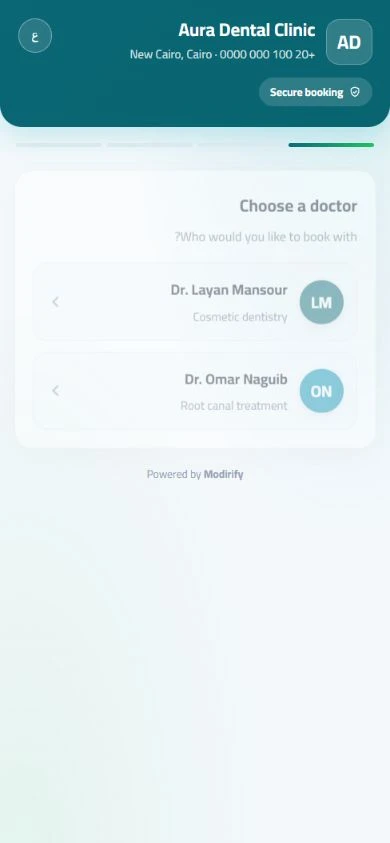
Online booking in Modirify is part of the clinic’s public presence rather than a detached form. One centrally managed setup can publish an Arabic and English clinic page, control visible contact details and clinical cases, enable or disable booking, and provide a public link and QR code that the clinic can preview before sharing or printing.
Direct answer
How do the clinic website and booking work together?
The public clinic page introduces the clinic and lets an eligible visitor begin booking from the same public path. The clinic controls whether the page and online booking are active, which phone and address details appear, which selected cases are public, and which language visitors see by default. The link and QR code point patients to that managed presence.
01Online booking and clinic presence
The booking entry point follows clinic settings and the public page remains under clinic control.
Core capabilities
Verified booking and QR controls
The booking entry point follows clinic settings and the public page remains under clinic control.
A public clinic website link where visitors can discover the clinic and start booking.
A QR code ready for reception desks, print materials and social channels.
Preview the public experience before sharing it with patients.
Download the QR as an image or print it directly from settings.
Manage the website and booking entry point from the same central record.
One presence story
Publish clinic information and booking from one setup
Existing clinic-website copy supplies the public-page controls absorbed into this pillar.
Present the clinic in Arabic and English
The public page supports separate Arabic and English headlines and introductions with a default language for the visitor. That lets the clinic maintain the public explanation in both supported languages while managing it from the same system rather than opening a separate website project.
Keep publication under clinic control
The clinic can publish the page or take it offline immediately without deleting its content. Online booking can also be enabled or disabled from clinic settings. Publication and booking are therefore explicit states, not permanent changes that require rebuilding the page.
Choose which public details appear
The clinic controls whether its phone and address appear on the public page. A clinical case library can hold before-and-after images and categories, and each case can be selected for the website, the waiting display or both. The clinic decides which eligible content crosses into a public surface.
Preview before sharing
The public experience can be previewed before patients receive the link. The QR code can be downloaded as an image or printed directly from settings for the reception desk and other clinic materials. Previewing makes the link and its visible clinic details reviewable before distribution.
Connect discovery to the schedule
The patient can discover the clinic and begin booking from one public link. The resulting appointment enters the clinic’s appointment and reception workflow according to the available booking path and settings, avoiding a separate form whose entries must be copied into the schedule by hand.
Workflow
From clinic setup to a shared booking link
The clinic reviews the public surface before making it available.
Prepare the public profile
Add the Arabic and English introduction and choose which contact details and eligible cases appear.
Configure booking
Set working hours and decide whether the online booking entry point is enabled.
Preview the patient path
Open the public experience and verify the language, visible details and booking start.
Publish and share
Publish the page, then share the public link or download and print its QR code.
Daily value
Why one public setup matters
One managed presence
The clinic page and booking entry point do not require separate content and schedule tools.
Review before publication
The clinic previews visible information before distributing the link or QR.
A direct reception path
Eligible bookings arrive in the same appointment workflow the team already follows.
Clear answers
Frequently asked questions
Can the clinic turn online booking off?
Yes. Online booking can be enabled or disabled from clinic settings.
Does the public page support Arabic and English?
Yes. It supports separate headlines and introductions with a visitor default language.
Can the clinic review the page before sharing it?
Yes. The public experience can be previewed before the link or QR code is distributed.
Can every clinical case appear publicly by default?
The clinic chooses whether each eligible case appears on the website, waiting display or both.
Start with Modirify
A cloud platform that helps dental clinics manage everyday work in one place.
Start with Modirify